Installation
Inboxt offers browser extensions and a Progressive Web App (PWA) to make saving and accessing content fast and convenient across devices.
This page explains what to install and when.
Browser extensions
Browser extensions are the recommended way to save content to Inboxt on desktop.
With an extension installed, you can save the current page with a single click. Extensions also allow Inboxt to receive the page’s content directly from your browser, which can improve reliability, especially for dynamic or complex websites.
Available extensions
- Chrome Web Store (or search for 'Inboxt')
- Firefox Add-ons
Once installed, you will need to configure the extension with your Inboxt instance URL and an API token.
For details on saving behavior, see Saving Articles.
Mobile and Progressive Web App
Inboxt does not have a native mobile app. Instead, it can be installed as a Progressive Web App (PWA) on supported browsers.
The PWA provides an app-like experience on mobile and desktop and makes it easier to access Inboxt from your home screen or application launcher.
Self-hosting requirements
For the PWA installation to work on your self-hosted instance, it must be served over a secure connection (HTTPS). See the Self-hosting Guide for details.
Installing the PWA
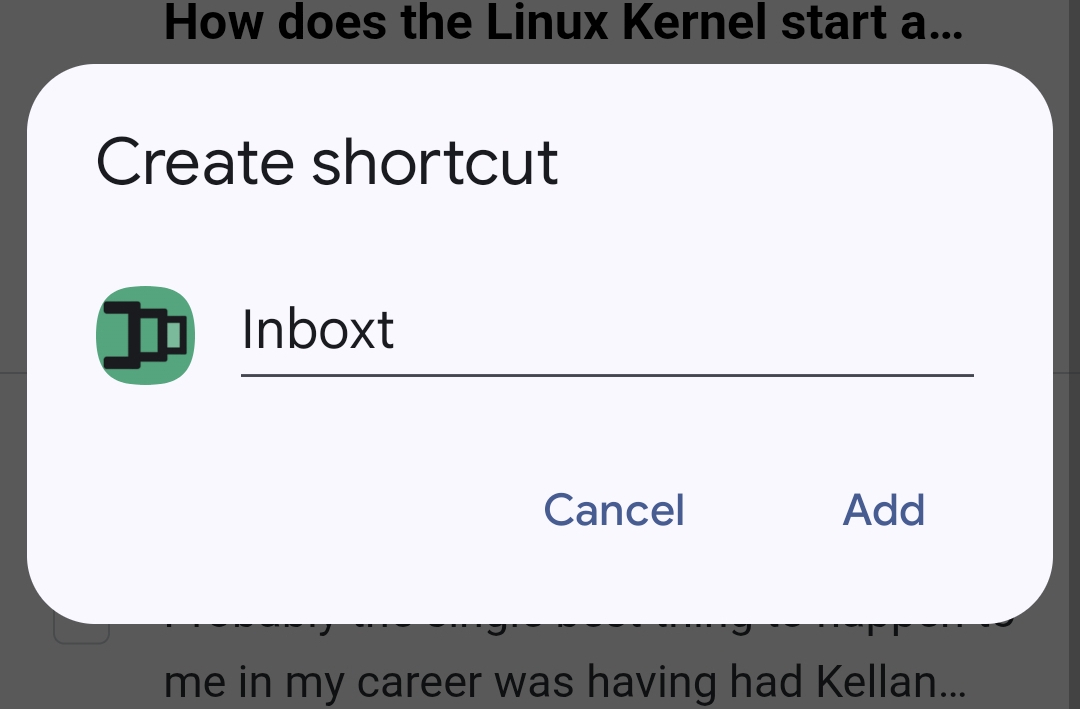
You can install Inboxt as a Progressive Web App directly from your browser:
- iOS: Add to Home Screen from the share menu
- Android: Add to Home Screen from the browser menu
- Desktop: Use the install icon in the address bar
The PWA currently requires an internet connection and does not yet support offline usage.
What should I install?
- If you read primarily on desktop, install the browser extension
- If you read on mobile, install the PWA for quick access
- If you use multiple devices, installing both works well