Newsletters & Email
Inboxt lets you receive newsletters and other email content directly into your library, alongside saved articles. This makes it easy to read newsletters in the same calm, distraction-free environment as the rest of your content.
How it works
Inboxt allows you to create as many inbound email addresses as you need (limited only by your setup or preferences). Any email sent to these addresses is processed and saved to your library as a readable item.
This is especially useful for newsletters that don’t have a public web archive or are difficult to read outside an email client.
Required configuration
To use newsletter features, your Inboxt instance must be configured to receive inbound emails via a webhook. See the Self-hosting Guide for detailed setup instructions.
Inbound email addresses
Inbound email addresses can be used to:
- Subscribe to newsletters
- Forward emails you want to read later
- Receive automated content or notification emails
Emails sent to these addresses are parsed and displayed inside the app.
Creating an email address
To create a new inbound email address:
- Click your profile icon in the top-right corner
- Select Emails
- Click Create email address
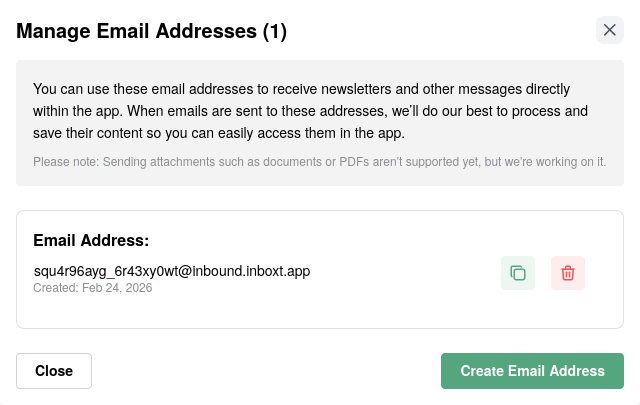
The address is generated immediately and can be copied for use anywhere you would normally enter an email address.
Managing email addresses
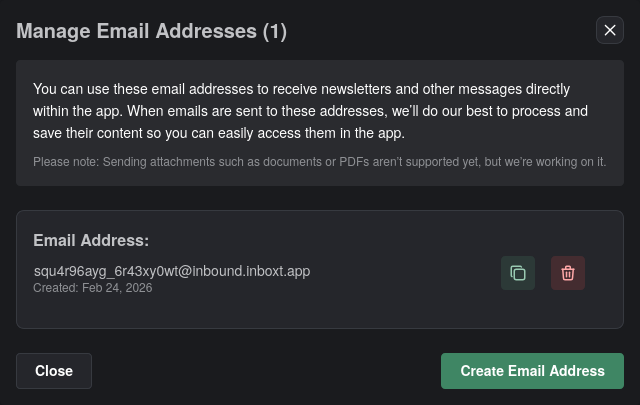
Inbound email addresses are managed from the same Emails modal.
From there, you can:
- View all active inbound addresses
- Copy an address for reuse
- Delete an address you no longer need
Deleting an inbound email address immediately stops Inboxt from receiving emails sent to it.
Reading newsletters
Emails received through inbound addresses are saved to your library and can be read like any other item.
- Content is extracted into a clean reader view
- Images and formatting are simplified for readability
- Newsletters appear in the Newsletters tab by default
If a newsletter cannot be processed (e.g., due to complex formatting or extraction issues), Inboxt will create a failed item in your library. This ensures you are notified of the arrival. If you have a forwarding email address configured, the original message will also be forwarded to you for manual review.
Like other saved items, newsletters can be labeled, archived, searched, or deleted.
Unsubscribe support
When possible, Inboxt detects unsubscribe information provided by the sender and shows an Unsubscribe option.
Selecting this option opens the sender's unsubscribe page, where you can complete the process manually.
Unsubscribed records are deleted after 90 days
This cleanup only affects subscription metadata, not the newsletter content already saved to your library.
Limitations
Email handling has some inherent limitations due to the wide variety of email formats and sender behavior.
For details, see Limitations.