Reading in Inboxt
Inboxt is designed for reading. Articles and newsletters open in a clean reader view that removes distractions and keeps the focus on the content.
Reader view
When you open an article or newsletter, Inboxt displays it in a dedicated reader view, similar to reader modes in modern browsers.
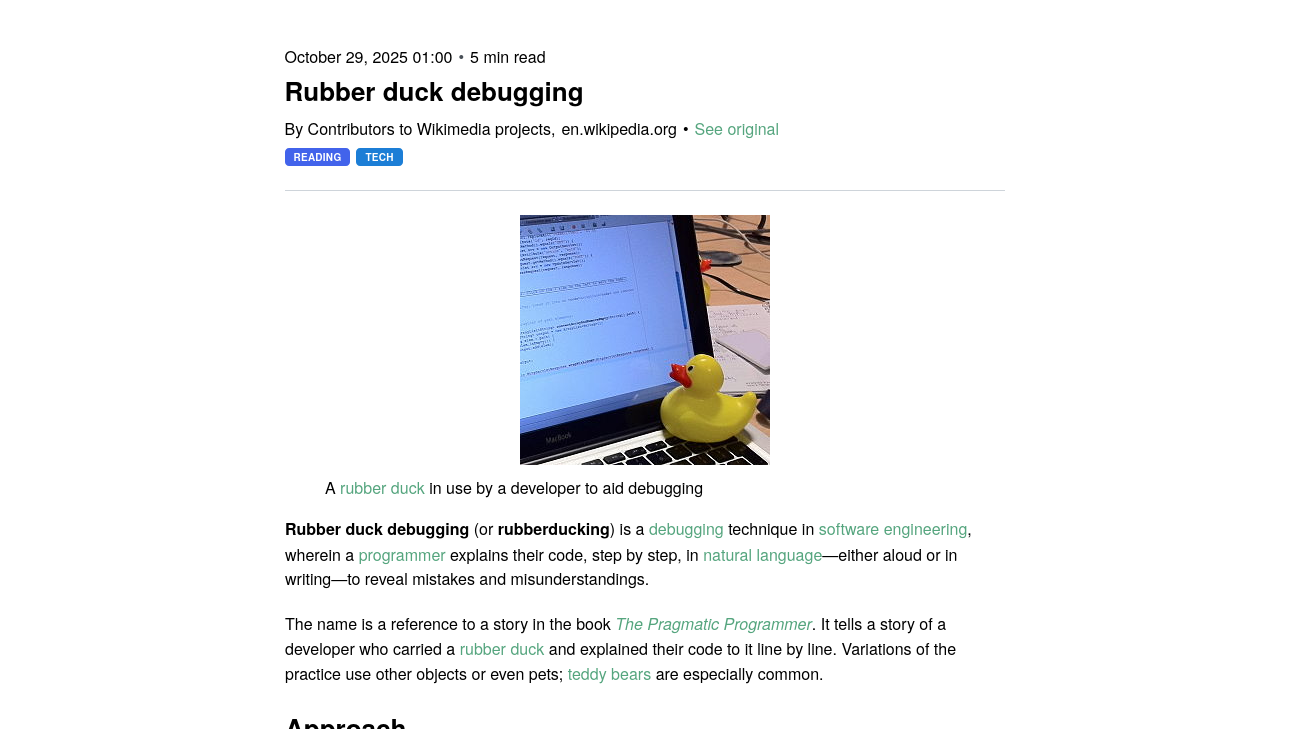
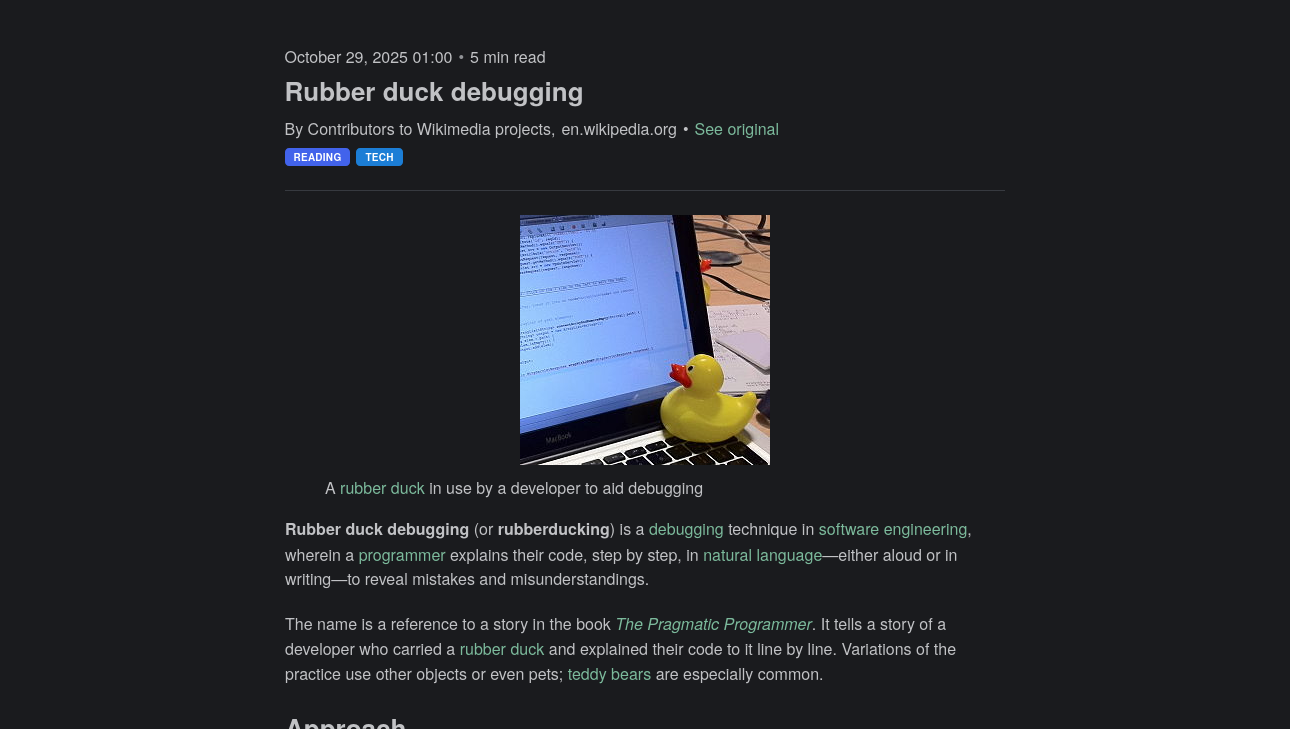
The reader view provides a focused environment for your content with several key features:
- Clean Layout: Centers content and removes ads, navigation, and other visual noise.
- Consistency: Works seamlessly for both articles and newsletters.
- Navigation: Quickly move between articles using the navigation buttons on desktop or by swiping on touch devices.
- Image Lightbox: Click on any image within an article to view it in full screen.
- Link Actions: Click on links within the article to access quick actions, such as saving the link to Inboxt, opening it in a new tab, or copying the URL.
- Reader Toolbar: On mobile devices, a bottom toolbar provides quick access to common actions like archiving, deleting, or editing the item.
- Highlight Selection: Easily create highlights by selecting text and using the highlight action in the reader toolbar.
- Reading Progress: Inboxt tracks your reading progress for each article and newsletter, showing a progress bar at the top and automatically restoring your scroll position when you return.
- Immersive Header: The reader view header automatically hides as you scroll down on mobile, providing a distraction-free experience.
Reading settings
You can customize the reader view to match your preferences.
Available options include:
- Theme (light, dark, sepia)
- Font family and size
- Font weight
- Content width
- Line height
- Letter spacing
- Text alignment
Settings apply across all items.
Highlights
Highlights are saved selections of text from the reader view.
To create a highlight, select text on desktop or mobile.
Highlights:
- Are not comments or annotations
- Sync across devices
- Work the same way for articles and newsletters
Managing highlights
Inboxt provides a dedicated Highlights view where you can:
- See highlights from all saved items in one place
- Open highlights in context
- Copy or delete highlights
Exporting highlights
Highlights can be exported for use outside of Inboxt.
Supported formats and export behavior are documented in Exporting Data.